![[Contents]](TOC.GIF)
![[Prev. Chapter]](REW.GIF)

![[Next Section]](NEXT.GIF)
![[Next Chapter]](FF.GIF)
![[Index]](INDEX.GIF)
![[Help]](HELP.GIF)
This chapter explains how to perform a full installation of a TruCluster product. If you are installing for the first time, use this chapter. Before you begin the installation, complete the preinstallation tasks described in Chapter 2.
Table 3-1 summarizes the full installation tasks. It lists the tasks in order, shows the TruCluster products to which each task applies, and provides pointers to necessary information.
Note
For Production Server, a cluster member does not have to belong to an available server environment (ASE), although there must be at least one ASE in the cluster. If you are installing Production Server on a system that will not be part of an ASE, ignore the tasks related to ASE membership and services.
| Task | Product | See: | ||
| Load the TruCluster kit. The installation procedure starts automatically when you load the kit. | PS | AS | MC | Section 3.1 |
| Specify the IP name and address of the cluster interconnect (PS), the member network interface (AS), or the adapter (MC). | PS | AS | MC | Section 2.1 and Section 3.2 |
| Specify an ASE identifier. | PS | Section 3.3 | ||
| Decide whether to run the ASE logger daemon on this system. | PS | AS | Section 3.4 | |
| Initialize the ASE database. | PS | AS | Section 3.5 | |
| Select a kernel configuration file. | PS | AS | MC | Section 3.6 |
| Renumber shared SCSI buses. | PS | AS | Section 3.7 | |
| Build and install a new kernel. | PS | AS | MC | Section 3.8 |
Add host entries to
/etc/hosts
(optional for MC). |
PS | AS | MC | Section 2.1 and Section 3.9 |
| Enable new distributed lock manager (DLM) interfaces and reboot the system. | PS | Section 3.10 | ||
| Reboot the system. | AS | MC | Section 3.11 | |
| After all systems are installed, populate the member list in the ASE database. | PS | AS | Section 3.12 | |
| After all systems are installed, create consistent device special files for an ASE tape service. | PS | AS | Section 3.13 | |
| After all systems are installed, specify a tie-breaker disk (only for a two-system, virtual-hub cluster). | PS | Section 3.14 | ||
After all systems are installed, run
clu_ivp
to verify the installation. |
PS | AS | MC | Chapter 5 |
Caution
The following procedure assumes that you are either installing a TruCluster product for the first time, or that you performed a full installation of the DIGITAL UNIX Version 4.0D operating system. In either case, your
/vmunixkernel is compatible with the TruCluster installation.However, if you are performing a rolling or simultaneous upgrade, and used the update installation procedure for the DIGITAL UNIX operating system, boot
/genvmunixbefore loading the TruCluster kit. Booting/genvmunixremoves the possibility of a TruCluster kernel build failure caused by unresolved symbols.
To load the TruCluster kit, follow these steps:
Log in as superuser.
Change directory to root (cd /).
Mount the device or directory containing the TruCluster product kit.
Enter the
setld -l
command and specify
the directory where the kit is located.
For example:
# setld -l /TCR150/kit
The installation procedure starts automatically and lists the available mandatory and optional subsets associated with the license you registered. (See Table 1-4 for a description of the subsets associated with each license.) You can choose one of the following subset installation options:
All mandatory subsets only
All mandatory and selected optional subsets
All mandatory and all optional subsets
DIGITAL recommends that you choose the "All mandatory and all optional subsets" option.
After you select an option, the installation procedure checks that there
is sufficient file system space.
After this check complete satisfactorily,
the installation procedure copies the subsets onto your system.
(The following
directories are the default locations for the majority of installed files:
Note
You cannot install individual TruCluster product subsets. For example, the following command results in an error:
# setld -l /TCR150/kit/TCRASE150
TCRASE150 cannot be installed. Please do not install subsets
individually.
![[Prev. Section]](PREV.GIF)
The installation procedure prompts you for an Internet Protocol (IP)
name and address to associate with the system's network interface.
For Production Server
and Available Server, this IP name is stored as the value of the
CLUSTER_NET
variable in the
/etc/rc.config
file.
(See
Section 2.1
for information about required IP names and
addresses.)
In the following Production Server example, the MEMORY CHANNEL IP name is formed by adding
the prefix
mc
to the current host name (clu14) in order to identify this IP name as an interface to the MEMORY CHANNEL
subnet:
Configuring "TruCluster Configuration Software " (TCRCONF150)

Enter the IP NAME for the cluster interconnect: mcclu14
Note
If you make a mistake when specifying the IP name for the cluster interconnect, press Return when prompted for the IP address. The installation procedure will prompt for a new IP name.
The installation procedure reads the system's
/etc/hosts
file to determine whether an entry exists for the IP name.
If an entry for
the IP name exists, the installation procedure displays the entry and asks
whether you want to replace the existing entry with the IP name and address
you just specified.
For example:
If you want to use the existing
/etc/hosts
entry, answer
n; the information you specified during
installation is ignored.
If you want to replace the existing
/etc/hosts
entry, answer
y.
The installation procedure then replaces
the entry in the/etc/hosts
file with the IP name and
address you specified.
The installation procedure automatically configures the network interface.
Production Server lets you organize systems and shared storage devices into one or more nonoverlapping available server environments (ASEs). The following list provides basic information about ASEs and ASE IDs:
An ASE manages a collection of systems and the shared SCSI buses to which they are connected, providing an environment in which services can be started, stopped, and automatically relocated in response to software or hardware failures.
An ASE must have at least two member systems. A system can belong to only one ASE.
Each ASE has a unique ASE identifier (ASE_ID), a variable
stored in
/etc/rc.config
with a value of 0-63, inclusive.
All members in an ASE have the same ASE_ID.
The concept of multiple ASEs, and therefore the need for multiple ASE_IDs, applies only to Production Server.
If you install Available Server, there is only one ASE and its ASE_ID is automatically
set to
ASE_ID=0
by the installation procedure.
A system can be a member of a Production Server cluster without being a
member of an ASE.
If you answer
n
when prompted
Will the system be in an ASE? [y], the installation procedure does
not put the ASE_ID variable in
/etc/rc.config
and sets
ASE="off".
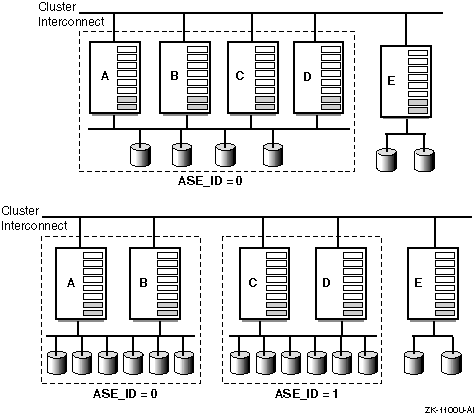
Figure 3-1 shows two examples of ASEs within a cluster.
In the first example, systems A, B, C, and D are in one ASE. When a cluster consists of a single ASE, DIGITAL recommends that you assign the default ASE_ID value of 0 to each system. System E is a member of the cluster, but is not a member of the ASE.
In the second example, the cluster is organized into two ASEs, each with two systems. Systems A and B have an ASE_ID of 0, and systems C and D have an ASE_ID of 1. System E is a member of the cluster, but is not a member of an ASE.
Caution
It is critical that you correctly assign ASE_IDs because Production Server does not automatically detect conflicts in ASE membership or errors in ASE_ID assignment. After installing Production Server on all cluster members, use the
clu_ivputility to verify the ASE_IDs (see Chapter 5).
The installation procedure asks whether the system will be part of an ASE. Answer y to this prompt if you want the system to be part of an ASE.
Will the system be in an ASE? [y]: [Return]
Note
If you answer n to this prompt, the installation program does not prompt for an ASE_ID.
In the following example, the cluster contains two ASEs; the first ASE
has
ASE_ID=0
and the second ASE has
ASE_ID=1.
The system being installed will belong to the second ASE.
You must now enter an ASE identifier (ASE_ID) for this node.  All nodes within
the same ASE must use the same ASE_ID.  Each separate ASE must have its own
unique ASE_ID.  The range of valid ASE_ID numbers is 0 to 63 inclusive.

Enter the ASE_ID number. [0]: 1
The installation procedure asks whether you want to run the ASE logger
daemon (aselogger) on this system:
Do you want to run the ASE logger on this node? [n]:y
If you answer y to this prompt, the ASE logger daemon starts when the system is rebooted.
DIGITAL recommends that you run the ASE logger daemon on at least one system in each ASE. You can run the ASE logger daemon on more than one system; however, you will have virtually duplicate logs on these member systems. There is no synchronization between the logs on different systems.
If you decide to run only one ASE logger daemon in each ASE, run it on a highly available system or a standby system. If the ASE logger daemon is not running on any member system, or the system running the logger daemon goes down, messages pertaining to cluster operation are logged locally.
If you choose not to run the ASE logger daemon when you install TruCluster software, you can later set the ASELOGGER variable to start a logger daemon each time the system boots by entering the following command:
# rcmgr set ASELOGGER 1
For more information on the ASE logger daemon, see the TruCluster Software Products Administration manual.
If the installation is a first time installation, the installation procedure
automatically creates and initializes a new ASE database,
/var/ase/config/asecdb.
Whenever the ASE database is initialized, the following message
is displayed:
Initializing a new V1.5 ASE database ...
Section 4.2 describes the options for rolling and simultaneous upgrades when the installation procedure detects an existing ASE database.
At this point in the installation process, the kernel configuration
and build procedure begins.
You are prompted for the name of a kernel configuration
file.
You can accept the default or enter the name of another configuration
file.
In the following example, the default configuration file,
CLU14, is accepted:
The kernel will now be configured using "doconfig".

Enter the name of the kernel configuration file. [CLU14]: [Return]
After you specify the name of the kernel configuration file, the installation
procedure asks whether you want to edit the file (after first saving the original
configuration file with a
.bck
extension):
*** KERNEL CONFIGURATION AND BUILD PROCEDURE ***

Saving /sys/conf/CLU14 as /sys/conf/CLU14.bck

Do you want to edit the configuration file? (y/n) [n]: [Return]
To edit the kernel configuration file, answer
y.
Otherwise, accept the default response (n).
If you
answer
y
and the EDITOR shell environment variable
is defined,
doconfig
starts that editor; otherwise, it
starts
ed.
Because systems can have different numbers of internal buses, a SCSI controller installed in an I/O bus slot might not have the same bus number on each member. However, within an ASE, each system must use the same device number when referencing a shared device. The relationship between device numbers and logical bus numbers is as follows:
Device numbers are derived from the logical bus numbers defined in each system's configuration file. If you connect a shared bus to SCSI controllers that have the same logical bus number on each system, each shared device will have the same device number on each system.
Bus numbers are assigned to SCSI controllers during the kernel
configuration process and are specified in the system configuration file.
When you configure a kernel by running the
doconfig
program
using the generic kernel, an algorithm is used to probe the SCSI controllers
installed in the system.
As the probe algorithm encounters the adapters,
it assigns logical bus numbers to the SCSI controllers in sequence, starting
with the number
0.
Because an ASE depends on each member system having a consistent view
of shared SCSI devices, the
doconfig
program automatically
calls the ASE I/O bus renumbering utility (/var/ase/sbin/ase_fix_config), which lets you assign a specific bus number to each external
SCSI controller installed in a system before you rebuild the kernel.
Note
The first time
ase_fix_configis run, it saves information about the SCSI controller options in the system's kernel configuration file. Whenever you rundoconfig, it automatically callsase_fix_config. Thease_fix_configutility then compares its saved SCSI information with that in the current version of the configuration file. If it detects no SCSI controller differences, it exits silently. However, when you invokease_fix_configdirectly, it does not exit silently; you have the option to view and modify controller information.
The following sections show you how to perform these tasks:
The
ase_fix_config
utility displays the SCSI controllers
that can be used for the shared buses in the ASE on the Shared I/O Bus Selection
Menu.
Select the SCSI controllers whose bus numbers you want to reassign.
(Local bus and unsupported SCSI controllers are not given a option numbers.)
The ASE I/O Bus Renumbering Tool has been invoked

Select the controllers that define the shared ASE I/O buses.

        Name    Controller      Slot    Bus     Slot
     )  scsi0   psiop0          0       pci0    1
    1)  scsi1   pza0            0       pci0    6
    2)  scsi2   pza1            0       pci0    7

    q)  Quit without making changes

Enter your choices (comma or space separated): 1 2

        scsi1 pza0 0 pci0 6
        scsi2 pza1 0 pci0 7

Are the above choices correct (y|n)? [y]: [Return]
After you select the SCSI controllers, you can specify a number at which to start numbering the controllers.
                I/O Controller Name Specification Menu

All controllers connected to an I/O bus must be named the same on all ASE
members.  Enter the controller names for all shared ASE I/O buses by assigning
them one at a time or all at once with the below options.

        Name            New Name        Controller      Slot    Bus     Slot
    1)  scsi1           scsi1           pza0            0       pci0    6
    2)  scsi2           scsi2           pza1            0       pci0    7

    f)  Assign buses starting at a given number
    v)  View non shared controllers
    s)  Show previous assignments
    q)  Quit without making any changes
    x)  Exit (done with modifications)

Enter your choice [f]: [Return]

What number would you like your shared scsi controllers to start at? [16]:4
Note
Bus numbers equal to or greater than the starting number are assumed to be shared buses. Bus numbers less than the starting number are assumed to be private to this system. When choosing a starting number, pick a number that is high enough to allow for expansion of private storage without having to renumber shared buses.
When you finish renumbering buses, choose option
x
to exit.
The installation procedure displays the new SCSI controller information.
When you confirm that the new SCSI controller configuration is correct, the
ase_fix_config
utility saves the original configuration file with
an
.asesave
extension, changes the numbers assigned to
the SCSI buses in the kernel configuration file, and creates device special
files.
Your new scsi controller configuration is:

        Name    Controller      Slot    Bus     Slot
        scsi0   psiop0          0       pci0    1
        scsi4   pza0            0       pci0    6
        scsi5   pza1            0       pci0    7

Is this ok? [y]: [Return]

Moving scsi controllers:
        scsi1 to scsi4
        scsi2 to scsi5

Saving the original configuration file to CLU14.asesave

The configuration file CLU14 has been updated.

Creating necessary devices:

MAKEDEV: special file(s) for rz32:
rz32a rrz32a rz32b rrz32b rz32c rrz32c rz32d rrz32d rz32e rrz32e rz32f rrz32f
rz32g rrz32g rz32h rrz32h
MAKEDEV: special file(s) for rz33:
rz33a rrz33a rz33b rrz33b rz33c rrz33c rz33d rrz33d rz33e rrz33e rz33f rrz33f
rz33g rrz33g rz33h rrz33h

.
.
.
The
ase_fix_config
script changes the numbers assigned
to the SCSI buses in the system configuration file.
If any of the renumbered
devices contain file systems or filesets, edit the following system files
before booting the new kernel:
For a UNIX file system (UFS), manually edit the
/etc/fstab
file to correct any references to the renumbered devices.
Using
the previous example, the original
/etc/fstab
file entry
is as follows:
/dev/rz26c /usr/users2 ufs rw,groupquota
After the bus renumbering, you must change the entry to the following:
/dev/rz34c /usr/users2 ufs rw,groupquota
For an Advanced File System (AdvFS) fileset, you must correct the symbolic
links in the/dev/rz26c
is assigned to the AdvFS domain
users,
then the following symbolic link exists:
/etc/fdmns/users/rz26c -> /dev/rz26c
After the bus renumbering, you must change the link to the following:
/etc/fdmns/users/rz34c -> /dev/rz34c
If SCSI bus renumbering done during the installation causes the names
of disks already given to the Logical Storage Manager (LSM) to change, you
must reconfigure the LSM metadata.
For disk groups other than the
rootdg
disk group, perform the following steps after rebooting the
system but before using the
asemgr
utility to add volumes
in the affected disk groups to ASE services.
Note
Disks that are placed in the
rootdgdisk group must be on a private SCSI bus. The commands in the following steps do not apply to therootdgdisk group.
Enter a
voldisk define
command using the new disk
name for all disks whose names change due to the bus renumbering.
For example,
if device
rz8
becomes
rz16
and
rz9
becomes
rz17, enter the following commands:
# voldisk define rz16
# voldisk define rz17g
# voldisk define rz17h
Import the affected disk group:
# voldg import dgname
Perform recovery for the disk group:
# volrecover -sb
You are now ready to add volumes contained in this disk group to services
created with the
asemgr
utility.
If you do not make these changes before you boot the new kernel, the file systems or filesets will be unavailable, but the data is not lost.
The
doconfig
program names the new kernel
If the kernel build is successful, the name of the new kernel file is displayed as follows:
        Working....Mon Apr 14 13:53:22 EDT 1997
        Working....Mon Apr 14 13:55:22 EDT 1997
        Working....Mon Apr 14 13:57:29 EDT 1997

The new kernel is /sys/CLU14/vmunix
If the kernel build is not successful, see the troubleshooting information in Section 6.2.
When the kernel build is successful, the installation procedure displays a list of instructions. The following example shows the instructions for a Production Server installation:
The kernel build was successful. Please perform the following actions:

        o Move the new kernel to /.
        o Before rebooting make sure that the cluster interconnect IP
          addresses for all cluster members are recorded in each member's
          /etc/hosts file.
        o Reboot the system.
Note
The displayed instructions indicate that you reboot the system after verifying that all required host entries are in
/etc/hosts. Depending on your installation type, follow the task steps listed in Table 3-1 or Table 4-1, and reboot at the indicated steps. The tasks are ordered to minimize the number of reboots required during installation.
The installation procedure does not automatically move the new kernel to the root directory. You can rename the new kernel or save the existing kernel before manually moving the new kernel to the root directory.
Before moving the original kernel aside and copying the new one to the
root directory, use the
df
command to check that there
is enough disk space for both files.
Move the new kernel to the root directory.
In the following example,
the old kernel is saved as
vmunix.save
and the new kernel,
/sys/CLU14/vmunix, is moved to the root directory:
# cp /vmunix /vmunix.save
# mv /sys/CLU14/vmunix /
After
you verify the proper operation of the new kernel, you can remove the old
kernel (called
vmunix.save
in this example).
DIGITAL
recommends that you keep a kernel that does not contain cluster support (for
example,
/genvmunix).
To avoid relying on name servers for critical operations, make sure
that each system has the IP names and addresses of all other systems that
are in the cluster or ASE.
If you have not yet added these names and addresses
to
/etc/hosts, see
Section 2.1
and do so before booting the new kernel.
When performing a Production Server full installation or a simultaneous upgrade, you can enable new distributed lock manager (DLM) interfaces and boot the new kernel as a single operation. Once you have enabled DLM features on one system and booted that system, do not boot systems that do not have the new DLM features enabled. This section assumes that you are either installing for the first time, or that you are performing a simultaneous upgrade and that no system is booted until it is upgraded and new DLM features are enabled.
Caution
Do not run the
dlm_enablescript during a rolling upgrade. However, after you install Production Server Version 1.5 on all cluster members, you can run thedlm_enablescript and reboot each system in turn. Section 4.4 describes how to enable new DLM interfaces following a rolling upgrade.
Before running the
dlm_enable
script on the first
system, make sure the power to the MEMORY CHANNEL hub is turned on.
Turning on
the power to the MEMORY CHANNEL hub after a cluster member has booted does not
result in the formation of a cluster.
To enable the new DLM features and reboot the system, follow these steps :
Run the
dlm_enable
script:
# /usr/sbin/dlm_enable
The script displays:
Would you would like to reboot the system at this time (y/n)? [n]:
During the reboot, startup messages are displayed on the console. Example A-1 shows the startup messages following a successful Production Server installation.
To
check the version of the installed software, query the value of the
cluster_version
attribute in the
/etc/sysconfigtab
file by entering the following command:
# sysconfig -q clubase cluster_version
clubase:
cluster_version = DIGITAL UNIX TruCluster V1.5-n  (Rev. nnn); 11/10/97 17:47
To reboot the system, enter the following command:
# shutdown -r now
During the reboot, startup messages are displayed on the console. Example A-1 shows the startup messages following a successful Production Server installation.
To check the version of the installed software, query the value of the
cluster_version
attribute in the
/etc/sysconfigtab
file by entering the following command:
# sysconfig -q clubase cluster_version
clubase:
cluster_version = DIGITAL UNIX TruCluster V1.5-n  (Rev. nnn); 11/10/97 17:47
If this system will be part of an ASE, and you are not using an existing ASE database, the installation procedure initialized an ASE database on this system with an empty member list. If you performed a simultaneous upgrade and are reusing a saved ASE database, you must still populate the member list.
After all systems are installed, run the
asemgr
utility
on one system in each ASE to populate the member list with the IP names of
ASE members.
On the selected member system, enter the following command to
invoke the
asemgr
utility:
# asemgr
When the
asemgr
utility prompts for a list of the IP names of the ASE members,
enter the name of each member's interface using the names you specified during
the installation.
Use a comma to separate each name.
(If you specify a fully
qualified IP name, the
asemgr
utility shortens the name
to its unqualified alias, that is, excluding the domain portion of the name.
The installation procedure automatically adds the unqualified alias, if needed,
when it adds the system's interface name to the
/etc/hosts
file.)
The
asemgr
utility then displays the list of member
names that you specified.
When you confirm that the list is correct, the
asemgr
utility displays the ASE Main Menu.
For example:
Enter a comma-separated list of member systems' interfaces on the cluster
interconnect within ASE 1.
Enter Members: mcclu13, mcclu14

Member List: mcclu13, mcclu14

Is this correct (y/n) [y]: [Return]

                ASE Main Menu

    a)  Managing the ASE
-->
    m)  Managing ASE Services
-->
    s)  Obtaining ASE Status
-->

    x)  Exit                             ?)  Help

Enter your choice: x
See the TruCluster Software Products Administration manual for information on setting up ASE services.
If you intend to configure a highly available tape service in an ASE,
make sure that the raw tape device special files (those files with the
rmt
prefix) are named consistently on all members of that ASE.
If
all tape devices are on the shared SCSI bus, each member will have identical
device special files for them, and you need do nothing more.
However, if some
members also have private tape devices, the device special files for the tape
devices may be given names that are different than those used by other ASE
members.
This difference is caused by the bus probe code that runs as part of
the base operating system installation.
The code scans private buses before
shared buses, creating physical tape
tz
device special
files as it encounters tape devices.
The conversion of the
tz
device special files to
rmt
device special files, which
occurs at the first boot of the new kernel, follows the order of the
tz
device names.
To remedy this situation, you must first list the physical tape devices
from each ASE member and determine which are on the shared SCSI bus.
To do
so, use the
scu
utility with the following commands:
# scu
scu> scan edt
Scanning all available buses, please be patient...
scu> show edt
You will see listings similar to those in the following example:
CAM Equipment Device Table (EDT) Information:

    Device: RZ28       Bus: 0, Target: 0, Lun: 0, Type: Direct Access
    Device: RZ26       Bus: 0, Target: 1, Lun: 0, Type: Direct Access
    Device: RZ26       Bus: 0, Target: 2, Lun: 0, Type: Direct Access
    Device: RRD45      Bus: 0, Target: 6, Lun: 0, Type: Read-Only Direct Access
    Device: RZ28M      Bus: 1, Target: 1, Lun: 0, Type: Direct Access
    Device: RZ28M      Bus: 1, Target: 2, Lun: 0, Type: Direct Access
    Device: DEC  N01   A10 Bus: 1, Target: 6, Lun: 7, Type: Processor
    Device: TZ887      Bus: 2, Target: 5, Lun: 0, Type: Sequential Access
    Device: TZ Media   Changer Bus: 2, Target: 5, Lun: 1, Type: Medium Changer
    Device: DEC  N01   A10 Bus: 2, Target: 6, Lun: 7, Type: Processor
In this example,
TZ887
is the hardware name of a
tape device on a shared SCSI bus.
If you are not sure which SCSI buses are
shared, run the
ase_fix_config
utility.
(The
doconfig
program, when called by the TruCluster software installation
procedure, automatically runs the
ase_fix_config
utility.
You also run the
ase_fix_config
utility each time there
are changes in the SCSI configuration of an ASE.) The utility provides information
similar to the following:
Select the controllers that define the shared ASE I/O buses.

        Name    Controller      Slot    Bus     Slot
     )  scsi0   psiop0          0       pci0    1
    1)  scsi1   pza0            0       pci0    7
    2)  scsi2   pza1            0       pci0    8

    q)  Quit without making changes

Enter your choices (comma or space separated): q
To determine the device special file names for each tape device, enter the following command:
# ls -l /dev/rmt*
You will see listings similar to the following:
crw-rw-rw-   1 root     system     9,37894 Aug  1 11:24 rmt0a
crw-rw-rw-   1 root     system     9,37890 Aug  1 11:24 rmt0h
crw-rw-rw-   1 root     system     9,37888 Aug  1 11:24 rmt0l
crw-rw-rw-   1 root     system     9,37892 Aug  1 11:24 rmt0m
As you enter these commands on each system, make sure that the device
special file name of each highly available tape device is the same on each
member and that the device's major and minor number, listed in column 5 of
the display, match on each member.
You need compare only one of the listed
files for each tape: for instance,
rmt0h
in this example.
On any member with a private tape device, you need to delete the existing
rmt
files and then rebuild them, starting with those for the highly
available tape devices.
After you delete the files, rebuild them as follows:
Examine the output of the
scu
commands
previously listed.
Compute the tape device's unit number from its SCSI address according to the following formula:
unit_number = ( 8 * bus_number ) + target_id
In the example of the
TZ887
device, this resolves
to:
unit_number = (8 * 2) + 5
unit_number = 21
(See
mc(7), distributed with the SCSI CAM Layered
Components kit, for additional help on this step.)
Use the
MAKEDEV
script to create the device
special files, supplying the device unit number obtained in the previous step.
For example:
# ./MAKEDEV tz21
A two-system cluster can use a virtual hub connection between the systems
to provide access to MEMORY CHANNEL hardware.
However, if the MEMORY CHANNEL cable is
disconnected from either system, this type of cluster configuration can partition
(that is, divide into two one-system clusters, each running its own connection
manager's director daemon,
cnxmgrd).
Caution
If not detected, a cluster partition can result in unpredictable behavior and corruption of shared data.
In order for the connection manager to detect (and remedy) a cluster partition, you must specify at least one tie-breaker disk to which both systems have access. When a virtual hub is in use and a tie-breaker disk is defined, the cluster requires that either both systems, or one system and the disk, must be present for the cluster to run or continue to run.
Note
In virtual hub mode, the connection manager and the distributed lock manager (DLM) will not function until a tie-breaker disk is configured.
A device specified as a tie-breaker disk remains available to the service that manages it. When there is only one system remaining in a two-system cluster, the connection manager asks the ASE availability manager driver about the reservation status of the device. When the connection manager determines that there is a partition, the remaining member system is shut down.
Note
When performing a full installation or a simultaneous upgrade, you can configure a tie-breaker disk on each system after installing the latest version of the Production Server software on both systems.
When performing a rolling upgrade, you must configure a tie-breaker disk on each system after upgrading it to the latest version of the Production Server software. (When you deinstall the old Production Server software, the CNX_DISK variable is removed from
/etc/rc.config. If you do not configure a tie-breaker disk after upgrading the first system, it will be unable to maintain the cluster when you halt the second system.)
Use the
cnxshow
command to determine whether or not a tie-breaker disk is required and, if
required, whether or not the tie-breaker disk has been configured.
For example,
after installing Production Server, but prior to configuring a tie-breaker disk, the
cnxshow
command displays the following information:
# cnxshow
Cluster View from mcclu14

Director: Unknown   Suspended: Yes

Node monitor using tie-breaking disk: Required but not defined

The node monitor and the local node specify different disks.
The local node specifies disk : Unknown

Hostname      Cluster I/F   CS_ID      Incarnation          Comm Okay  Member
-----------------------------------------------------------------------------
clu13         mcclu13       0000,0000  000000000004cf70        No       ?
clu14         mcclu14       0000,0000  00000000000305f0        No       ?
(See
cnxshow(8)
for more information on the
cnxshow
command.)
If your cluster uses a virtual hub, follow these steps to set up and define a tie-breaker disk:
Run the
clu_ivp
utility to ensure that the ASE is
properly configured.
(See
Chapter 5
for information on
the
clu_ivp
utility.)
On one system, use the
asemgr
utility to set up at
least one ASE service that can run on either system and that includes at least
one participating disk.
For example, you might set up a disk service to provide
a highly available mail service.
Include at least one disk in this service.
The ASE service that manages the tie-breaker disk can be a Network File System (NFS) service, a distributed raw disk (DRD) service, a disk service or a tape service (that specifies a disk).
Note
Do not restrict the automatic service placement (ASP) policy of this service.
For information on how to set up an ASE service, see the TruCluster Software Products Administration manual.
To ensure that the service is known to the ASE availability manager
driver and properly configured on the other system, use the
asemgr
utility to manually relocate the service to the other system.
For
example, to relocate the service
ase_nfs_1
to system
mcclu13, enter the following command:
# asemgr -m ase_nfs_1 mcclu13
On both systems, run the
cnxset
command,
specifying the name of at least one raw disk device participating in the ASE
service.
For example:
# cnxset -d /dev/rrz10c
Verifying: /dev/rrz10c
     /dev/rrz10c is being watched by the local ASE
     /dev/rrz10c is an acceptable device

Local configuration updated...You must also update all other nodes
Note
You must specify a raw disk device name. Do not specify the name of a Logical Storage Manager (LSM) volume or an Advanced File System (AdvFS) fileset.
The
cnxset
command checks that the name you specify
has these characteristics:
Is a reference to a physical disk
Is a character device
Is known to the ASE availability manager driver
The
cnxset
command places this device name in the
CNX_DISK
variable in the
/etc/rc.config
file and notifies
the connection manager that a configuration change has occurred.
You can verify
the setting of the
CNX_DISK
variable by entering the following
command:
# rcmgr get CNX_DISK
/dev/rrz10c
Note
If the device you specify cannot be verified as a physical disk or as a character device, the
cnxsetutility adds the device name to the/etc/rc.configfile but the connection manager might not function.
Before using the
cnxset -d
command, it is
recommended that a tie-breaker disk belong to an ASE service, the ASE service
is online, and the service has run on both systems (manually relocating the
ASE service to the other system, if necessary, as explained in step 3, which
shows how to
relocate an ASE service).
However, the
cnxset
command lets you configure a tie-breaker disk before setting
up ASE services.
If you do so, make sure to set up an ASE service that uses
the disk as soon as possible.
In the following example, device
/dev/rrz41c
is
unknown to the ASE availability manager driver on the current system:
# cnxset -d /dev/rrz41c
Verifying: /dev/rrz41c
     /dev/rrz41c is unknown to the local ASE
     Performing further checks on this device...
       /dev/rrz41c is a disk
       /dev/rrz41c will be configured anyway
     /dev/rrz41c is an acceptable device

Local configuration updated...You must also update all other nodes
One of the following conditions is likely to produce these messages:
Device
/dev/rrz41c
has not yet been added
to an ASE service.
Device
/dev/rrz41c
has been added to
an ASE service, but the service is off line.
In the following example, the
cnxset
utility is unable
to open device
/dev/rrz1c:
# cnxset -d /dev/rrz1c
Verifying: /dev/rrz1c
     /dev/rrz1c is unknown to the local ASE
     Performing further checks on this device...
       /dev/rrz1c can not be opened. Unable to verify device
       /dev/rrz1c will be configured anyway
     /dev/rrz1c is an acceptable device

Local configuration updated...You must also update all other nodes
One of the following conditions is likely to produce these messages:
The ASE service in which device
/dev/rrz1c
participates is running on the other system; therefore, that system has a
reservation on the device.
The ASE service to which device
/dev/rrz1c
belongs has not run on the current system.
The
cnxset
utility is unable to verify a
device in these cases.
Since the specified device appears to be a disk (its
name is of the correct form), the
cnxset
utility accepts
the specification and configures the device as a tie-breaker disk.
You can specify up to three raw devices as tie-breaker disks. By defining multiple tie-breaker disks, you eliminate a disk as a single point of failure when the cluster is operating with only one system. For greater reliability, DIGITAL recommends that each tie-breaker disk participate in a different ASE service. In this way, you can take one of these services off line without affecting the tie-breaker capability. You must manually relocate each such ASE service before defining the tie-breaker disks.
Use a single
cnxset -d
command to define all tie-breaker
disks.
Use commas (no spaces) to separate raw device names on the
cnxset
command line.
For example:
# cnxset -d /dev/rrz10c,/dev/rrz11c,/dev/rrz12c
Note
When two tie-breaker disks are specified, the connection manager requires that one member, plus both disks, be present. Any other policy would risk a partition involving two "one member and one tie-breaker" configurations. The two tie-breaker disk configuration introduces another risk (that is, either of the tie-breaker disks failing would bring down the cluster), so it is not very useful.
When three tie-breaker disks are specified, the connection manager requires that one member, plus two disks, be present. This is the optimal configuration for systems that require no single point of failure.
Each time you use the
cnxset -d
command, any previously
defined tie-breaker disks are replaced with the new definitions.
To remove all tie-breaker disk definitions from the
/etc/rc.config
file, use the
cnxset -D
command.
For more information, see
cnxset(8).