![[Contents]](TOC.GIF)
![[Prev. Chapter]](REW.GIF)

![[Next Section]](NEXT.GIF)
![[Next Chapter]](FF.GIF)
![[Index]](INDEX.GIF)
![[Help]](HELP.GIF)
This chapter describes the preparation required to set up the services in an available server environment (ASE) within your TruCluster configuration. Later chapters describe how to set up and manage specific types of ASE services.
Specifically, this chapter discusses the following topics:
How to add a service (Section 4.1)
How to use the Automatic Service Placement (ASP) policies (Section 4.2)
How to use disk quotas in an ASE (Section 4.3.3)
How to use the UNIX File System (UFS) in your services (Section 4.3.5)
How to use the Advanced File System (AdvFS) in your services (Section 4.3.6)
How to use the Logical Storage Manager (LSM) in your services (Section 4.3.7)
How to install the applications you want to fail over in an ASE (Section 4.4)
How to use your own action scripts (Section 4.5)
This chapter also lists the steps you follow to ensure that you have performed all the necessary service preparation tasks.
After you perform the preparatory tasks, you can use the
asemgr
utility to add the service to the ASE.
After you specify the necessary
service information, the TruCluster software updates the ASE database, propagates
the database changes to all members of the ASE, and adds the service to all
the members.
The TruCluster software then chooses a member to run the service
and starts the service on that member.
Before you add a service, you must plan on how you want to set up the service and perform some preparatory tasks. Not all services require that you perform all the tasks. For example, some services consist of only a disk configuration or only an application.
To ensure that you are ready to use the
asemgr
utility
to set up a service, follow these steps:
Prepare the disk configuration for the service. Depending on the service, you may have to install and set up specific software, such as UNIX File Service (UFS), Network File System (NFS), Advanced File System (AdvFS), or Logical Storage Manager (LSM) on all the member systems. If you want to use disk quotas, you must set up the quota files.
Install the application that you want the service to fail over to. Any application that you use in the service must be installed on all the member systems.
Create the action scripts that ASE will use to fail over the application. At a minimum, you must create start and stop action scripts for the service.
Determine if you want to restrict the service so that it runs only on specific member systems. A service's Automatic Service Placement (ASP) policy determines which members can run the service.
After you perform the previous tasks, use the
asemgr
utility to add the service to the ASE.
The following sections describe ASP
policies, how to prepare a disk configuration, and how to use action scripts.
The following chapters describe how to add a specific type of service.
![[Prev. Section]](PREV.GIF)
The Automatic Service Placement (ASP) policy for a service determines
which member systems are allowed to run the service.
You must choose an ASP
policy for each service.
The
asemgr
utility prompts you
for the ASP policy when you add a service.
Whenever the TruCluster software automatically starts a service (for example, when a service relocates because of a member system failure), it chooses a member system to run the service. The member system it chooses depends on the service's ASP policy and which member systems are available.
Note
You can manually relocate a service by using the
asemgrutility to override the ASP policy.
You can use a service's ASP policy to specify a master/standby configuration, where one member runs all the applications and the other member is used only if the master system fails. You can also specify that any member system can run the service. This ASP policy ensures that the services are distributed equally among the members.
When you add a service, the
asemgr
utility prompts
you for the service's ASP policy.
There are three ASP policies:
Balanced Service Distribution--If you choose this policy, the TruCluster software considers the member that is running the least number of services the member most favored to run the service. Using this policy, services are distributed equally among the members.
Favor Members--If you choose this policy, the TruCluster software prompts you for a list of available server environment (ASE) members. The first member on the list is the member most favored to run the service. If that member is unavailable, the second member on the list is the most favored member. If all the members on the list are unavailable, the member that is running the least number of services is the most favored member. This accommodates the previously mentioned master/standby configuration.
Restrict to Favored Members--This policy is similar to the Favor Members policy. If you choose this policy, you are prompted for a list of ASE members. However, unlike the Favor Members policy, if all the members on the list are unavailable, the TruCluster software will not start the service. This policy ensures that the service will never run on a member that is not on the list, unless you manually relocate the service to that member.
After you choose one of the previous ASP policies, you must specify if you want the TruCluster software to relocate a service to a more highly favored member if it becomes available. For example, if the most highly favored member fails, its services relocate to another member. If the most highly favored member system becomes available again, depending on the option you choose, the TruCluster software can either relocate the service back to the original member system or keep the service running on the current member.
Also, if you specify only one favored member, you must indicate if you
want the TruCluster software to change the one favored member to the member
that is specified when you manually relocate the service.
If you choose this
option and manually relocate the service, the member to which you relocated
the service is now the only favored member for the service.
For example, if you specify that a service can run only on
member1
and you manually relocate the service to
member2, the TruCluster software can make
member2
the
only member on which the service can run.
Example 4-1 shows how to select the Favor Members ASP policy and specify two favored members.
        Selecting an Automatic Service Placement (ASP) Policy

Select the policy you want ASE to use when choosing a member
to run this service:

    b)  Balanced Service Distribution
    f)  Favor Members
    r)  Restrict to Favored Members

    x)  Exit to Service Configuration      ?)  Help

Enter your choice [b]: f

        Selecting an Automatic Service Placement (ASP) Policy

Select the favored member(s) IN ORDER for service 'disk1':

    1)  gideon
    2)  toto
    3)  nobrain

    x)  No favored members               ?)  Help

Enter a comma-separated list [x]: 2,1

        Selecting an Automatic Service Placement (ASP) Policy

Do you want the ASE to relocate this service to a more highly
favored member if one becomes available while the service
is running (y/n/?): y
If you are setting up a distributed raw disk (DRD), Network File System (NFS), disk, or tape service, you must install and set up the disk configuration that will be used in the service. Note that user-defined services do not utilize disks. In general, you set up the disk configuration in the same way as in an environment other than an ASE.
However, once the disk is used in an ASE service, it must be managed within the ASE. The ASE must control the disk if a service is running. For example, do not manually unmount a file system that is being used by an online ASE service.
The following sections contain general information about using disks in the ASE, in addition to information about using the UNIX File System (UFS), NFS, and the Logical Storage Manager (LSM).
The following requirements apply to all disk configurations:
A disk cannot be used in more than one service, because a service must have exclusive access to a disk. When you use a disk in a service, use the entire disk. This requirement also applies to disks that are divided into partitions and used in AdvFS domains and LSM disk groups.
Use the least possible number of disks per service. Using a small number of disks in a service is recommended because, if a disk fails, the service stops. However, if you use LSM or RAID to mirror the disks, only a complete mirrored volume failure (both disks in the mirrored volume fail) will cause the service to stop.
Make sure that only the ASE service processes are accessing the disk. A service's mount point can be used only for the ASE service and should not have any other use in the system. See Section 4.3.2 for more information.
Do not locally mount the disks that you will use in a service; the TruCluster software mounts them for you.
Do not unmount a disk used in an online service.
If a network disconnection occurs or if I/O to a nonmirrored disk fails, a service cannot be stopped. The TruCluster software will reboot the member running the service.
The following sections describe how to control access to disks and how to use UFS, AdvFS, and LSM in your services.
You must be able to control the processes that access the disks used in your services. This is because the TruCluster software must be able to stop a service in order to relocate a service, place a service off line, or modify a service. If the TruCluster software is unable to stop a service, ASE operation may be impaired.
Notes
If a service fails to stop, the
asemgrutility prompts you with a number of choices, so you can fix the problem. See Chapter 10 for more information.If, while attempting to fail over a service, an ASE member cannot stop the service, the member will reboot itself. The rebooting sequence allows another member to provide the service. In addition, it often corrects the situation that prevented the member that originally owned the service from stopping the service.
If the TruCluster software cannot stop a service that uses mounted disks,
you may see the following error message in the
daemon.log
file:
device busy
This message indicates that the TruCluster software could not unmount a disk, possibly because it could not stop all the processes accessing the disk.
The TruCluster software cannot stop a service that uses mounted file systems, filesets, or volumes unless it can unmount them. The TruCluster software may not be able to unmount a disk in the following situations:
A process that accesses the disk was invoked by the service's start action script, but the service's stop action script does not invoke a command to stop the process.
A process that the start action script did not start and that is unrelated to the ASE is accessing the disk. This could occur if a user logs in to the system on which the file system is locally mounted and changes directory to the mount point.
You must ensure that only processes started and stopped by the service's action scripts can access the disks used in a service. Make sure that all the processes invoked by the start action script are stopped by the stop action script. The actions in the start script must be reversed by the actions in the stop script.
If you want to allow users to access the mounted disks, use an NFS service and allow users to access only the directory that is exported, not the directory that is mounted locally.
To enable access through NFS, create an entry in each member system's
/etc/fstab
file and specify the service name as the remote host
from which to NFS-mount the file system.
You must also specify the exported
file system path.
If you must allow access to the local mount point, ensure that the service's stop action script is able to stop these processes.
You can enable disk quotas on file systems or filesets that are used in an ASE service. Quotas allow you to limit the number of blocks and inodes (or files) that a user or a group of users can allocate. You can set a separate quota for each user or group of users on each file system. See the DIGITAL UNIX System Administration manual for detailed information about UFS and AdvFS disk quotas.
To use disk quotas in an ASE, you must mount the
/proc
file system on each member system.
Add the
/proc
file system to the
/etc/fstab
file as follows:
/proc /proc procfs rw
When you add a service that uses disk quotas, the TruCluster software
creates a
/var/ase/config/fstabs/service_name
file on each member system.
The file contains records that describe each
mount point used by the service.
The records use the format of the
/etc/fstab
file.
When a service is started on a member, the TruCluster software creates
a link to the
/var/ase/config/fstabs/service_name
file in the
/var/ase/config/fstabs.running
directory.
The TruCluster software removes the link when it stops
the service.
Therefore, only one member system has a pointer to the file
at any time.
There are two methods you can use to set up disk quotas on a UNIX file system in the ASE:
Use the
quotacheck
command to set up the
quota.user
or
quota.group
file.
You can place
these files in the root of the file system or in some other location.
Use the
asemgr
utility to specify the file
system in a service.
When prompted for quota files, specify the pathname
of the
quota.user
or
quota.group
file.
Alternatively, you can:
Use the
asemgr
utility to specify the file
system.
When prompted for quota files, specify the pathname of the
quota.user
or
quota.group
file.
You can place
these files in the root of the file system or in some other location.
After you start the service, use the
edquota
command to specify the quota limits in the files.
You must execute this
command on the system that is running the service.
If you use the
mkfset
command to create an
AdvFS fileset, the command automatically sets up quota files in the root
of the fileset.
You cannot specify another location.
To set up quotas on
an AdvFS fileset in the ASE, use the
asemgr
utility to
specify the fileset and, when prompted for quota files, specify the
quota.user
or
quota.group
file.
After you add
the service, you must use the
vedquota
command to specify
the quota limits in the files.
Place the quota files on a file system used in the service, so the files are relocated with the service. For AdvFS, you must locate the quota files on the fileset. If you are using UFS and want to specify another location, you must manage the quota files separately on each system. Do not locate quota files on a file system that is used by another service.
To display the mount options for a file system or fileset, including
whether quotas are enabled, use the
asemgr
utility to
display service status.
To change the quota files or disable quotas for a file system
or fileset, modify the service and select the file system or fileset.
Then,
choose to modify the quota options.
To disable quotas, specify
none
when prompted for the quota files.
There are three methods to back up a disk that is used in an ASE service:
Use the
asemgr
utility to relocate the
service to a specific member so the service will not move.
You must perform
the backup or restore from this member.
Use the
asemgr
utility to place the service
that uses the disk off line, which stops the service.
Perform the backup
from any member system.
Note that if you are using AdvFS or LSM disks, they
must be configured on the system from which you are performing the backup.
Use POLYCENTER NetWorker Save and Restore for DIGITAL UNIX to back up a disk that is used in an NFS service or in a disk service that uses an IP address. NetWorker treats an ASE service as an independent client and stores the storage indexes under the name of the service. This enables you to back up and recover the service's storage independent of the member system running the service. See the NetWorker documentation for information about using NetWorker to back up an ASE service's storage.
To use the UNIX File System (UFS) in the ASE, you
first set up the disks as you would for any UFS before you add the service.
That is, you must use the
disklabel
command to partition
a disk and the
newfs
command to create a file system on
a partition.
See the DIGITAL UNIX
System Administration
manual for information about setting up UFS.
When you use the
asemgr
utility to add an NFS, disk,
or tape service that uses UFS, you are prompted for the following information:
Device special file name (for example,
/dev/rz2c )
Mount point or export directory
Netgroup or system name to which the service is restricted (optional and only for NFS services)
Access mode (either read/write or read-only)
Additional mount options other than the default options specified
in
mount(8).
Example 4-2 shows how to specify a UFS when setting up a disk service.
                     Specifying Disk Information

Enter one or more device special files, AdvFS filesets, or LSM
volumes to define the disk storage for this service.

    For example:    Device special file:     /dev/rz3c
                    AdvFS fileset:           domain1#set1
                    LSM volume:              /dev/vol/dg1/vol01

To end the list, press the Return key at the prompt.

Enter a device special file, an AdvFS fileset, or an LSM volume as
storage for this service (press 'Return' to end): :/dev/rz20c

                  Mount Point

The mount point is the directory on which to mount `/dev/rz20c`.
If you do not want it mounted, enter "NONE."

Enter the mount point or NONE: /usr/dbase


              UFS File System Read-Write Access

Mount `/dev/rz20c` file system with read-write or read-only access?

    1)  Read-write
    2)  Read-only

Enter your choice [1]: 1

You may enable user and group quotas on this file system by specifying
names for the quota files.  If you accept the default quota file names,
the quota assignments you make with edquota will relocate with the file
system.  Enter "none" to disable quotas.

User quota file [/dbase/quota.user]: [Return]

Group quota file [/dbase/quota.group]: [Return]
              UFS Mount Options Modification

Enter a comma-separated list of any mount options you want to use
for `/dev/rz20c` (in addition to the UFS-specific defaults listed
in the mount.8 reference page).  If none are specified, only the
default mount options are used.

Enter options (Return for none): [Return]
You can use the Advanced File System (AdvFS) in an NFS service or a disk service. AdvFS provides you with fast file system recovery. If you want to use AdvFS, it is important that you read the following documentation:
The POLYCENTER Advanced File System Utilities Installation Guide describes how to install the POLYCENTER Advanced File System Utilities software. The POLYCENTER Advanced File System Utilities software is a separately licensed product.
The DIGITAL UNIX
System Administration
manual and
advfs(4 )
provide an introduction to AdvFS.
Also see
the AdvFS online help.
To use AdvFS in an ASE, you first set up AdvFS in the same way that
you would in an environment other than ASE before you add a service.
You
must set up the volumes, domains, and filesets that you will use in the service.
Do this on the same member system on which you will run the
asemgr
utility to add the service to the ASE.
The following example shows how to create a domain named
dom1
on the volume
/dev/rz10c, and then create a
fileset named
set1
on
dom1:
# mkfdmn /dev/rz10c dom1

# mkfset dom1 set1
The following sections describe the AdvFS requirements and how to specify
AdvFS information with the
asemgr
utility.
AdvFS has the following requirements:
You must set up the AdvFS volumes, domains, and filesets on
the same member on which you will run the
asemgr
utility
to add the service to the ASE.
A service can use more than one AdvFS domain, but a domain cannot be used by more than one service.
The AdvFS domain names must be unique in the ASE.
To modify an AdvFS configuration that a service uses, the disks must be configured on the system on which you make the modifications. See Chapter 10 for information.
When you delete a service that uses AdvFS, the
asemgr
utility prompts you for a member on which to leave the AdvFS domain
configured.
This enables you to use the storage configuration again.
If you create an NFS, disk, or tape service that uses AdvFS and choose not to have the TruCluster software automatically mount the filesets, a member system may panic unless the following conditions are met:
Before you add the service, make sure that the fileset is not already mounted.
If you mount a fileset in your own user-defined action scripts, make sure that the user-defined stop action script unmounts the fileset and returns an error code if the unmount fails.
If you use AdvFS in a service, you are prompted for the following information when you add the service:
Fileset name (for example,
dom1#fset2)
Mount point or export directory (optional for disk services)
Netgroup or machine name to which the service is restricted (optional and only for NFS services)
Access mode (either read/write or read-only)
Mount options other than the default options specified in
the
mount(8)
reference page
When you specify a fileset, the
asemgr
utility displays
the disk partitions and any
LSM volumes
that comprise
the fileset.
Example 4-3 shows how to specify an AdvFS fileset that uses an LSM volume.
                 Specifying Disk Information

Enter one or more device special files, AdvFS filesets, or LSM
volumes to define the disk storage for this service.

For example:        Device special file:      /dev/rz3c
                    AdvFS fileset:            domain1#set1
                    LSM volume:               /dev/vol/dg1/vol01

To end the list, press the Return key at the prompt.

Enter a device special file, an AdvFS fileset, or an LSM volume as
storage for this service (press 'Return' to end): dom1#set1

ADVFS domain `dom1` has the following volume(s):

     /dev/vol/dg3/vol01

Is this correct (y/n) [y]: y

Following is a list of device(s) and pubpath(s) for disk group dg3:

        DEVICE  PUBPATH

        rz32c   /dev/rz32c

Is this correct (y/n) [y]: y

Enter the directory pathname(s) to be NFS exported from the storage
area "dom1#set1".  Press 'Return' when done.

Enter a directory pathname: /usr/staff

  Enter a host name, NIS netgroup, or IP address for the NFS
  exports list (press 'Return' for all hosts): staff_group

Enter a directory pathname:[Return]


              AdvFS Fileset Read-Write Access

Mount `dom1#set1` fileset with read-write or read-only access?

    1)  Read-write
    2)  Read-only

Enter your choice [1]: 1

You may enable user and group quotas on this file system by specifying
names for the quota files.  If you accept the default quota file names,
the quota assignments you make with edquota will relocate with the file
system.  Enter "none" to disable quotas.

User quota file [/var/ase/mnt/ase4/usr/staff/quota.user]:
[Return]

Group quota file [/var/ase/mnt/ase4/usr/staff/quota.group]:
[Return]
              AdvFS Mount Options Modification

Enter a comma-separated list of any mount options you want to use for
the `dom1#set1` fileset (in addition to the defaults listed in the
mount.8 reference page).  If none are given, only the default mount
options are used.

Enter options (Return for none): bg
See Section 10.6 for information about modifying services that use AdvFS.
You can use Logical Storage Manager (LSM) volumes in an NFS, disk, or tape service. LSM provides high data availability for disk storage devices. It protects against data loss, improves disk I/O performance, and allows you to perform disk management functions without disrupting access to disks. If you want to use LSM volumes in an ASE service it is important that you read the DIGITAL UNIX Logical Storage Manager manual.
To use LSM, make sure that the LSM software is installed and initialized
before you add the service.
You must set up a
rootdg
disk group on each member system, set up the disk groups, and configure the
LSM volumes that you will use in the ASE services.
You can specify an LSM
volume in a service, or you can create a UNIX file system or an AdvFS domain
and fileset on top of an LSM volume, and use the file system or fileset in
a service.
Note
You must set up a service's LSM disk groups and volumes on the same member on which you will run the
asemgrutility to set up the service.
If you delete a service that uses LSM, the
asemgr
utility prompts you for a member on which to keep the service's storage configuration.
The disk groups will remain imported only on that system.
To set up LSM disk groups and volumes for a service, follow these steps:
Ensure that each member system has a
rootdg
disk group set up on local (nonshared) disks.
Configure the
rootdg
disk group on more than one disk.
This ensures that if one disk
fails, the disk group is still available.
On one member, initialize the disks to be used in each disk group.
Create the disk groups for the service and add the initialized disks to it. Note that a service can use more than one disk group, but a disk group can be used only in one service.
Create the volumes for the disk groups.
Optionally, create UNIX file systems or AdvFS domains and filesets on the volumes.
Run the
asemgr
utility and add the service.
The following sections describe the LSM requirements and how to set up a new LSM disk configuration for an ASE service. However, you may also want to use a configuration that was used in a previous service or for some purpose other than ASE. See Section 4.3.7.5 for information about using an existing LSM configuration.
LSM has the following requirements:
All ASE members must have the LSM software installed.
All ASE members must have a
rootdg
disk
group set up on local (nonshared) disks.
Configure the
rootdg
disk group on more than one disk.
This ensures that if one disk fails, the
disk group is still available.
Do not use the
rootdg
disk group in an
ASE service because it cannot be relocated.
All LSM disk group names in the ASE must be unique.
LSM nopriv disks that are created as part of the LSM encapsulation process cannot be used in an ASE service. LSM encapsulation converts a disk partition that contains data into an LSM disk. However, if a nopriv disk is created in order to reduce the number of configuration copies in a disk group, use the following command syntax to create an LSM disk without a configuration copy or a kernel log copy:
voldisksetup -i
[disk ]
[nconfig=0 nlog=0]
This command initializes the specified disk with a disk header that LSM recognizes when it is restarted, but without a configuration or kernel log copy. The disk then can be added to an LSM disk group to create volumes, and the volumes can then be used in an ASE service.
Each disk group must have four to eight copies of the configuration and kernel log files.
You must set up a service's disk groups and volumes on the
same member on which you will run the
asemgr
utility to
set up the service.
When modifying a service's LSM configuration, the disk groups
used in the service must be imported to the machine on which you will run
the
asemgr
utility.
LSM configuration changes can be
made only on an imported disk group.
You can modify the name of a service that uses LSM only if
the service is on line.
In addition, you must run the
asemgr
utility on the member that is running the service.
A disk or disk group can be used in only one service, but a service can use more than one disk or disk group.
When a failed or previously unavailable part of a mirrored
volume becomes available, you can reincorporate the device into the service
without interrupting the service.
To do this, resynchronize the mirrored
volume outside of the ASE on the member to which the disk groups are imported.
Then, rereserve the devices by using the
asemgr
utility's
Advanced Utilities menu.
If a service uses LSM mirrored volumes, do not modify the
service while a mirrored volume is synchronizing (using
volplex
att
or
volrecover), because the synchronization
will abort and then restart.
The abort will not corrupt the volume, but
it will delay the volume synchronization.
If a disk that is included in a plex that is part of an LSM
mirrored volume goes off line, the data in the volume is still available,
as long as one complete plex of the volume remains on line.
Thus, the service
that uses the mirrored volume remains available if a disk fails.
When the
failed disk is replaced, you can reincorporate the device into the ASE service
by resynchronizing the mirrored volume outside of the ASE and then rereserving
the devices using the
asemgr
utility's Advanced Utilities
menu.
In rare cases, if any disk that is part of an LSM disk group is not accessible when the service is started, you may access stale data or a stale LSM configuration. This can occur if two member systems access different subsets of the disks in the disk group. By default, the TruCluster software prevents accessing stale data by disabling the feature that allows you to start an unsynchronized mirrored volume.
To use LSM in your ASE services, you must set up LSM and create
a separate
rootdg
disk group on each member systems before
adding services.
See the DIGITAL UNIX
Logical Storage Manager
manual for information about using individual commands to customize
the
rootdg
disk group initialization.
Use the
volsetup
command to create the
rootdg
disk group.
When you create the
rootdg
disk group on each member system, you must specify disks only on the system's
local SCSI bus.
Do not specify disks that are on the ASE shared bus.
See
Figure 4-1
for an example of an LSM disk configuration
that uses two disk groups,
ase_dg1
and
ase_dg2, on two shared buses.
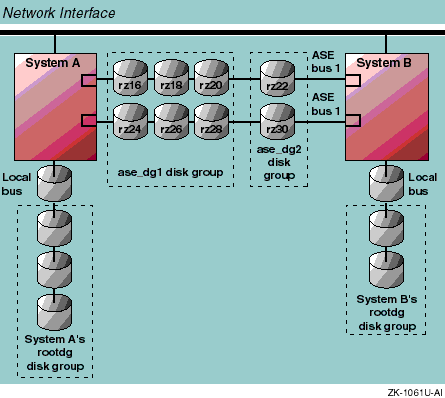
You must initialize the LSM disks and include them
in disk groups that are set up specifically for ASE.
The DIGITAL UNIX Logical Storage Manager
manual describes how to determine the
private region size and parameters for a disk group, how to initialize disks
for LSM, and how to set up and add disks to disk groups.
Figure 4-1
shows that disks on the two ASE shared buses are included in two shared disk
groups,
ase_dg1
and
ase_dg2.
The
voldisksetup
utility sets up a disk for LSM use
by modifying the disk label and initializing the private region.
The
voldg
command adds an initialized disk to a disk group.
You can
also use the
voldiskadd
utility to initialize disks and
add them to a disk group.
For each disk group, the number of copies and the size of the LSM configuration database must be configured to provide the best failover performance. However, you also must ensure that enough copies of the configuration database are available.
By default, the
voldisksetup
utility sets up LSM
disks with a private region size of 512 sectors, two copies of the configuration
database, and two copies of the log regions.
It is recommended that you set
up four to eight copies of the LSM configuration database for each disk group
used in the ASE.
For higher database availability, place the copies on different
SCSI buses, disk storage boxes, or RAID controllers.
Example 4-4
and
Example 4-5
create the
LSM configuration shown in
Figure 4-1.
Example 4-4
shows how to use the
voldisksetup
-i
command to initialize six entire disks with four copies of the configuration
database and four copies of the log regions distributed among the disks.
Example 4-4
also shows how to use the
voldg
command
to create the
ase_dg1
disk group and add the initialized
disks to the disk group.
# voldisksetup -i rz16 nconfig=1 nlog=1

# voldisksetup -i rz18 nconfig=1 nlog=1

# voldisksetup -i rz20 nconfig=0 nlog=0

# voldisksetup -i rz24 nconfig=0 nlog=0

# voldisksetup -i rz26 nconfig=1 nlog=1

# voldisksetup -i rz28 nconfig=1 nlog=1

# voldg init ase_dg1 ase_16=rz16

# voldg -g ase_dg1 adddisk ase_18=rz18

# voldg -g ase_dg1 adddisk ase_20=rz20

# voldg -g ase_dg1 adddisk ase_24=rz24

# voldg -g ase_dg1 adddisk ase_26=rz26

# voldg -g ase_dg1 adddisk ase_28=rz28
Example 4-5
shows how to initialize two entire disks,
with default private region parameters, create the
ase_dg2
disk group, and add the initialized disks to the disk group.
# voldisksetup -i rz22 nconfig=2 nlog=2 privlen=512

# voldisksetup -i rz30 nconfig=2 nlog=2 privlen=512

# voldg init ase_dg2 ase_22=rz22

# voldg -g ase_dg2 adddisk ase_30=rz30
If you want to use LSM volumes in your ASE services, you must configure them into the disk groups that you set up for the ASE. See the DIGITAL UNIX Logical Storage Manager manual for information about creating LSM volumes.
You can use the
volassist
command to create LSM volumes,
as follows:
# volassist -g ase_dg2 make vl2 100m nmirror=2
The
following command creates a striped LSM volume,
v1_ase:
# volassist -g ase_dg1 make v1_ase 64m usetype=fsgen layout=stripe \
      nstripe=3 stwidth=8k ase_16 ase_18 ase_20
The following command mirrors the striped LSM volume created by the previous command:
# volassist -g ase_dg1 mirror v1_ase layout=stripe nstripe=3 \
     stwidth=8k ase_24 ase_26 ase_28
After a volume is created, you can create a UNIX file system on the
volume, using the
newfs
command.
For example:
# newfs /dev/rvol/ase_dg2/vl2 rz26
You can also use LSM volumes in AdvFS domains.
The following example
uses the
mkfdmn
command to create a new AdvFS domain on
an existing LSM volume, and then uses the
mkfset
command
to create a fileset on the domain:
# mkfdmn /dev/vol/ase_dg1/v1_ase dom_ase1
# mkfset dom_ase1 set_ase1
The
previous sections describe how to set up a new LSM disk configuration for
an ASE service.
However, you may also want to use a configuration that was
used in a previous ASE service or for some other purpose.
To do this, the
disk groups used in the service must be imported to the machine on which
you are running the
asemgr
utility.
The disk groups cannot
be imported to any other system.
To determine the system to which a disk group is imported, use the following command:
# voldg list
If the disk group is imported on the member system on which you will
add the service, you can run the
asemgr
utility and add
the service.
If the disk group is not imported on the member system on which you will add the service, you must import the disk group only to the member on which you will add the service.
Use the following command syntax to deport a disk group:
voldg deport
[ disk_group]
To import the disk group, perform the following tasks on the member
system on which you will run the
asemgr
utility to add
the service:
Define the disks that are used in the disk group by using the following command syntax:
voldisk define
[ disk]
Place on line the disks that are used in the disk group by using the following command syntax:
voldisk online
[disk...]
Import the disk group by using the following command syntax:
voldg import
[disk_group]
Restart the volumes by using the following command syntax:
volrecover -sb
[disk_group]
After the disk group is imported, you can run the
asemgr
utility and add the service.
After you set up the LSM disk configuration, you can
use the
asemgr
utility to set up an NFS, disk, or tape
service that uses an LSM volume.
You can specify the following information
about an LSM volume:
LSM volume character device name if you want to use a raw disk
Device special file if the LSM volume is being used by a UNIX file system
AdvFS fileset name if the LSM volume is being used by an AdvFS domain
Mount point or export directory (optional for disk services)
Netgroup or machine name to which you want to restrict access (optional and only for NFS services)
Access mode (either read/write or read-only)
Mount options other than the default options specified in
mount(8)
When you specify an LSM, the
asemgr
utility displays
the disk partitions that comprise the volume.
Example 4-6 shows how to specify an LSM volume in a disk service.
                 Specifying Disk Information

Enter one or more device special files, AdvFS filesets, or LSM
volumes to define the disk storage for this service.

For example:        Device special file:      /dev/rz3c
                    AdvFS fileset:            domain1#set1
                    LSM volume:               /dev/vol/dg1/vol01

To end the list, press the Return key at the prompt.

Enter a device special file, an AdvFS fileset, or an LSM volume as
storage for this service (press 'Return' to end): /dev/vol/ase_dg2/vl2

                  Mount Point

The mount point is the directory on which to mount /dev/vol/ase_dg2/vl2.
If you do not want it mounted, enter "NONE."

Enter the mount point or NONE: NONE

Following is a list of device(s) and pubpath(s) for disk group ase_dg2:

        DEVICE  PUBPATH

        rz22c   /dev/rz22c
        rz30c   /dev/rz30c

Is this correct (y/n) [y]: y
See Example 4-3 for an example of specifying an LSM volume that uses an AdvFS fileset.
Note
When an ASE service using LSM volumes is relocated while a volume is open, LSM displays the following message on the console:
     volklog_dgfree:
       Can't free kernel logging area for vol_reset_kernel of group dg4
This message indicates that the LSM kernel log for the diskgroup was not cleared before the diskgroup was deported. When the diskgroup is reimported, the log area will be cleared. For this reason, you can safely ignore the console message.
You can use mirrored LSM volumes in your ASE services. If a disk that is included in a plex that is part of an LSM mirrored volume goes off line, the data in the volume is still available, as long as one complete plex of the volume remains on line. Thus, the service that uses the mirrored volume remains available if a disk fails.
When the failed disk is replaced, you can reincorporate the device into
the ASE service by resynchronizing the mirrored volume outside of the ASE,
and then rereserving the devices using the
asemgr
utility's
Advanced Utilities menu.
In rare cases, if any disk that is part of an LSM disk group is not accessible when the service is started, you might access stale data or a stale LSM configuration. This can occur if two member systems access different subsets of the disks in the disk group.
By default, the TruCluster software prevents accessing stale data by
disabling the
ASE_PARTIAL_MIRRORING
run-time configuration
variable that allows you to start an unsynchronized mirrored volume.
If you use LSM mirroring in a service and the
ASE_PARTIAL_MIRRORING
run-time variable is disabled (the default behavior), the service
can start only if the member system can access all of the disks in the disk
groups used in the mirroring.
This ensures that the service cannot be started
with obsolete LSM configuration information, which guarantees data integrity
but limits service availability.
If you use the default behavior, when you use the
asemgr
utility to set up a service that uses an LSM mirrored volume, choose an ASP
policy that will not automatically relocate the service to a more highly
favored member if the system becomes available.
If a plex fails, the service
remains available on the member.
Otherwise, if the plex fails and the service
tries to relocate, the service will not start.
For maximum service availability, you can set the
ASE_PARTIAL_MIRRORING
variable to
on
by invoking the following command
on all the members in the ASE:
# rcmgr set ASE_PARTIAL_MIRRORING on
If you do this, a service that uses LSM mirroring can start when only one plex of the data is available, but there is a remote possibility that the service will use obsolete LSM configuration information.
If the
ASE_PARTIAL_MIRRORING
variable is disabled,
you can force a service to start by enabling the
ASE_PARTIAL_MIRRORING
variable, manually restarting the service, and then disabling the
variable.
Do this if you know that a disk has failed and you want to relocate
the service.
The TruCluster software uses a pseudodevice
if a service includes both UFS and LSM.
When the TruCluster software mounts
a UNIX file system on an LSM volume, it maps the volume to an ASE pseudodevice
(/dev/ase_nnn) and then mounts
the pseudodevice.
For example, if you have an NFS service using the
/dev/vol/dg1/vol01
volume, the following information is displayed
when you invoke the
mountcommand:
# mount

.
.
.
/dev/ase_001 on /usr/var/ase/mnt/ase18/usr/ase18 type ufs (rw)
A pseudodevice is used because when LSM volumes move from one member to another, the major and minor numbers for the volume may change. Because NFS uses the major and minor numbers for its file handle, a change in these numbers means that the file handle may correspond to different file systems on each member. ASE guarantees consistent file handles by using a pseudodevice.
If your service uses an application that
you want to fail over, you must install the application before you set up
the service.
For example, when you set up an NFS mail service, you must
set up the mail hubs on the member systems before you use the
asemgr
utility to add the service to the ASE.
In addition, before you
set up a disk service that makes a database program highly available, you
must install the database program on all the members.
Only certain types of applications can be made highly available with an ASE service. The application must have the following characteristics:
The application must run on only one system at a time.
The application must be able to be started and stopped using a set of commands that are performed in a specific order. When you set up a service, these commands are included in a set of programs called action scripts.
When you install the application that you want to fail over, you must ensure that the application is located in the correct directory and has the correct access mode.
Section 4.5 describes how to set up the action scripts that the TruCluster software uses to fail over your application.
The TruCluster software uses action scripts to fail over the services in the ASE. Action scripts break down a procedure (for example, starting a service on a member system) into a series of steps, which are executed in order. The TruCluster software makes certain that each step is successfully completed. The order of the steps ensures that any dependencies are met before the next step is performed.
There are five types of action scripts: add, delete, start, stop, and check action scripts. In addition, there are two versions of each type of action script: internal and user-defined action scripts. These action scripts are executed at specific times and perform specific tasks.
The types of action scripts are as follows:
Add action script--After you use the
asemgr
utility to set up an ASE service, the TruCluster software
executes each add action script on all the member systems to configure the
service on the members.
The TruCluster software executes add action scripts
on all the members because each member must be able to run every service.
An add action script contains all the commands you need to set up the system
environment to enable the service to run.
For example, an add action script
could edit system files.
Delete action script--If you use the
asemgr
utility to delete a service from the ASE, the TruCluster
software executes each delete action script on all the members to remove
the service from the members.
Delete action scripts reverse any service setup
tasks that the add action scripts perform.
For example, if an add action
script made changes to a file, a delete action script will edit that same
file and remove the changes.
Start action script-- When the TruCluster software starts a service on a member system, it executes each start action script only on the member that the TruCluster software chooses to run the service. This is because only one member runs a service at any time. Start action scripts contain all the commands that are necessary to start a service on a member. For example, a start action script could invoke the application that you want to make highly available in the ASE.
Stop action script-- When the TruCluster software stops a service on a member system, it executes each stop action script to stop the service on that member. Stop action scripts reverse the tasks that the start action scripts perform. For example, if a start action script invokes an application, the stop action script will include a command to stop that application. If the stop action scripts do not stop all the processes accessing the disks used in a service, the disks cannot be unmounted and the service cannot be stopped. See Section 4.3.2 for more information.
Check action script--
Check action scripts determine
if a service is running.
When the director daemon starts, it interrogates
each member's agent daemon to determine which services are running.
The
agent daemons invoke the services' check action scripts and collect their
exit status to determine if the services are running.
The agent daemons also
invoke the check action scripts when you stop or delete a service to verify
the state of the service.
Usually, check action scripts check for a specific
running process by using the
ps
command.
For example,
the following command checks for the
mountd
daemon and
starts the daemon if necessary:
/bin/ps -e | grep "mountd" | grep -v grep || /usr/sbin/mountd
In addition, some applications can create a file that contains the process identification number (PID) of an active daemon. Check action scripts could check for the existence of that PID to determine if a service is running.
For the five types of action scripts, there are two versions of each type of script, as follows:
Internal action scripts--
Internal action scripts
are used only in NFS, disk, and tape services.
These scripts contain the
programs that make the UNIX file systems, AdvFS filesets, or LSM volumes
highly available.
These scripts cannot be manually edited.
You specify
information in the internal scripts only by responding to the
asemgr
utility prompts when you create a service.
Because
user-defined services do not use disks, there are no internal action scripts
for user-defined services.
Usually, for NFS services, the internal action
scripts are the only scripts you need.
User-defined action scripts-- User-defined action scripts contain the commands that the TruCluster software uses to fail over your application. For example, if you want to fail over a database application, set up user-defined action scripts that include the commands to start and stop the application.
You must create user-defined action scripts.
The TruCluster software
provides skeleton scripts that you can edit using the
asemgr
utility.
You can also create your own scripts outside of the ASE and then
use the
asemgr
utility to specify them in the service.
If you create your own scripts, they must be installed locally on each system.
User-defined services require you to create user-defined action
scripts, because they do not use any internal action scripts.
A user-defined
check action script is supported only in a user-defined service.
Although
NFS and disk services use internal scripts to fail over disks, if you also
want to fail over an application, you must create user-defined scripts to
start and stop the application.
Internal and user-defined action scripts are executed in a specific order, depending on the task the TruCluster software is performing. The following information shows the sequence of execution for an NFS service that uses both user-defined action scripts and internal action scripts.
To add an NFS service that is configured for Advanced File System (AdvFS) to the ASE, the TruCluster software does the following:
Runs the internal add action script, which performs the following tasks:
Invokes the
MAKEDEV
command to create the
device files for the devices in the service.
Creates the
/etc/exports.ase.service
file.
Runs any user-defined add action script.
To delete an NFS service from the ASE, the TruCluster software does the following:
Runs any user-defined delete action script.
Runs the internal delete action script, which removes the
/etc/exports.ase.service
file.
To start an NFS service on a member system, the TruCluster software does the following:
Runs the internal start action script, which performs the following tasks:
Sets up AdvFS domains, as necessary.
Invokes the
fsck
command on any UNIX file
systems used in the service.
Mounts all the file systems.
Adds the following line to the
/etc/exports.ase
file:
.INCLUDE
/etc/exports.ase.service
Aliases the virtual host using the following command:
ifconfig ln0 alias
hostname
Starts NFS locking by invoking the
statd
and
lockd
daemons.
Runs any user-defined start action script.
To stop an NFS service on a member system, the TruCluster software does the following:
Runs any user-defined stop action script.
Runs the internal stop action script, which performs the following tasks:
Stops NFS locking by stopping the
statd
and
lockd
daemons.
Removes the virtual host alias by using the following command:
ifconfig ln0 -alias
hostname
command.
Removes the
.INCLUDE /etc/exports.ase.service
line from the
/etc/exports.ase
file.
Unmounts all the file systems.
Unconfigures the domain.
When the TruCluster software invokes an action script, it usually considers a 0 (zero) exit code as a success. An exit code of 1 indicates that the script failed. The exception is the check action script, which exits with an exit code that is between 100 and 200 to indicate that the service is running, and an exit code that is less than 100 to indicate that the service is not running. A stop script can produce the exit code 99, which indicates that the service could not be stopped because the service was busy.
All standard output and standard error output from your script goes
to the ASE logger daemon, if running, or to the
syslog
daemon.
If an internal action script exits with a 0 (zero), it is logged
as an informational message; if a user-defined action script exits with a
zero, it is a notice.
If either type of script exits with an exit code other
than zero, the messages are logged as errors.
You use the
asemgr
utility to specify any user-defined
action scripts when you add or modify a service.
If you want to fail over
an application, at a minimum, you must create start and stop action scripts
to start and stop the application.
If you need to set up the system environment
in order for the service to run, then you also must create add and delete
action scripts.
For user-defined services, it is recommended that you create
a check action script, so the TruCluster software can determine if the service
is running.
There are three ways to specify a user-defined action script for a service:
You can create a script that will perform the desired task
outside of the ASE and specify the pathname location of the script when the
asemgr
utility prompts you for the script name.
Your script will
be copied into the ASE database.
After you specify the script, you can edit
the script only by using the
asemgr
utility.
This is
because the TruCluster software uses the copy of the script that is in the
ASE database and not the one that is located on the system.
When the
asemgr
utility prompts you for
a script name, you can specify
default.
You then edit
the skeleton action script that the TruCluster software provides, and include
the commands that will perform the desired task.
You can create a script that will perform the desired task
outside of the ASE and copy it to all the members.
Specify
default
when prompted for a script name, and edit the default script to
include a one-line pointer to the pathname of the existing script.
If you
use this method, you can modify the script by manually editing it on each
member.
Because you do not have to use the
asemgr
utility,
you can modify the script without interrupting the service.
In addition to specifying the user-defined action scripts, the
asemgr
utility allows you to specify the following script information:
Arguments that are passed to the script-- Arguments can be useful if you have a generic script to which you need to pass the service name or an action in order to make it work.
Timeout value-- The timeout value for a script is the specified length of time the TruCluster software waits for your script to finish running. This value should be the maximum amount of time that the script needs. If your script runs longer than the timeout value (for example, because it hangs), the TruCluster software considers the script failed and reports the failure as a timeout of the script.
Example 4-7
shows how to specify the pathname of
an action script at the
asemgr
prompt.
The script must
already be installed on your system.
Enter the full pathname of your start action script or "default"
for the default script (x to exit): /usr/sbin/dbase_account

Enter the argument list for the start action script

(x to exit, NONE for none): start

Enter the timeout in seconds for the start action script [60]: [Return]
Example 4-8 shows how to specify and edit a default skeleton script that the TruCluster software provides.
Enter the full pathname of the start action script or "default"
(for the default script (x to exit): default

Enter the argument list for the start action script
(x to exit NONE for none) [prophecy_1]: NONE

Enter the timeout in seconds for the start action script [60]:80

Modifying the start action script for `prophecy_1`:

    f)  Replace the start action script
    e)  Edit the start action script
    g)  Modify the start action script arguments [none]
    t)  Modify the start action script timeout [80]
    r)  Remove the start action script
    x)  Exit - done with changes

Enter your choice [x]: e

PATH=/sbin:/usr/sbin:/usr/bin
export PATH
ASETMPDIR=/var/ase/tmp

if [ $# -gt 0 ]; then
        svcName=$1
else
        svcName=
fi

# Start prophecy_1 database program:
su - prophecy -c dbstart
exit 0
:wq
Action scripts can test the
ASE_STATE
variable to
determine the state of a service.
If the
ASE_STATE
variable
is
STARTING, this indicates that the service's stop action
script was invoked because of a system reboot.
If the
ASE_STATE
variable is
RUNNING, this indicates that the
service's stop action script was invoked because the service was modified,
deleted, placed off line, or relocated.
A stop action script can test the value of the
ASE_STATE
variable and, if the value is
STARTING, perform some tasks
to ensure that erroneous processes are not running.
You may want to save the user-defined action scripts in a file
that you can access from outside of the ASE.
For example, you may want to
archive the files, or you may want to test the scripts outside of the ASE.
To do this, use the
asemgr
utility to edit the scripts.
Then, while in the editor, use a command similar to the following
vi
editor command to copy the script to a file:
:w /tmp/foo
Always test your script outside of the ASE to ensure that it
works.
When you are ready to set up a service that uses the script, first
set the ASE logging level to informational, so that all messages are logged.
After you set up the service to use the scripts, examine the
syslog
daemon logs for any problems.
If you have added any debug echoes
to the script, they will show up in the log file.
If your stop script fails when you use the
asemgr
utility to modify a service or place it off line, the TruCluster software
places the service off line and prompts you to ensure that the service has
stopped.
If this occurs because of an error in your stop script, use the
asemgr
utility to edit the script and correct the problem, then
place the service back on line.
If a stop service action fails to stop a service, the
asemgr
utility provides you with a number of opportunities to fix
the problem.
See
Section 10.3
for information.